
Welcome to ArenaDocs!
Your payment was successful. Follow the steps below to set your ArenaDocs password, install ArenaDocs in Microsoft Word, and get started.
Get Started in 5 Easy Steps
ArenaDocs works directly in Microsoft Word. First, set your password from the welcome email, then follow the steps below to install and start using it:
⏱️ This takes about 3 minutes. We've included screenshots below to make it super easy.
💡 Quick Overview: Check your email, set your password, then open Word, click the "Add-ins" button, search for "ArenaDocs", click "Add", and open it.
Check Your Email and Set Your Password
Look for a welcome email from ArenaDocs and click the password setup link inside it.
That link lets you create your ArenaDocs password so you can log in once the add-in is installed.
Note: If you don't see the email, check your spam or promotions folder for your ArenaDocs welcome message.
Open Microsoft Word
Simply launch Microsoft Word on your computer.
You can open an existing document or create a new blank document - it doesn't matter which.
Note: ArenaDocs works with Microsoft 365 and Word 2019 or later versions.
Click "Add-ins" in the Home Tab
In Microsoft Word, look for the "Add-ins" button in your ribbon at the top:

- Click on the "Home" tab at the top of Word
- On the far right side, click the "Add-ins" button (it looks like a window with four squares)
- This will open the Office Add-ins store
Can't find it? Some versions show it under "Insert" → "Get Add-ins" instead. Look for any button that says "Add-ins" or "Get Add-ins".
Search for "ArenaDocs" and Click "Add"
In the Add-ins store that just opened, search for ArenaDocs:
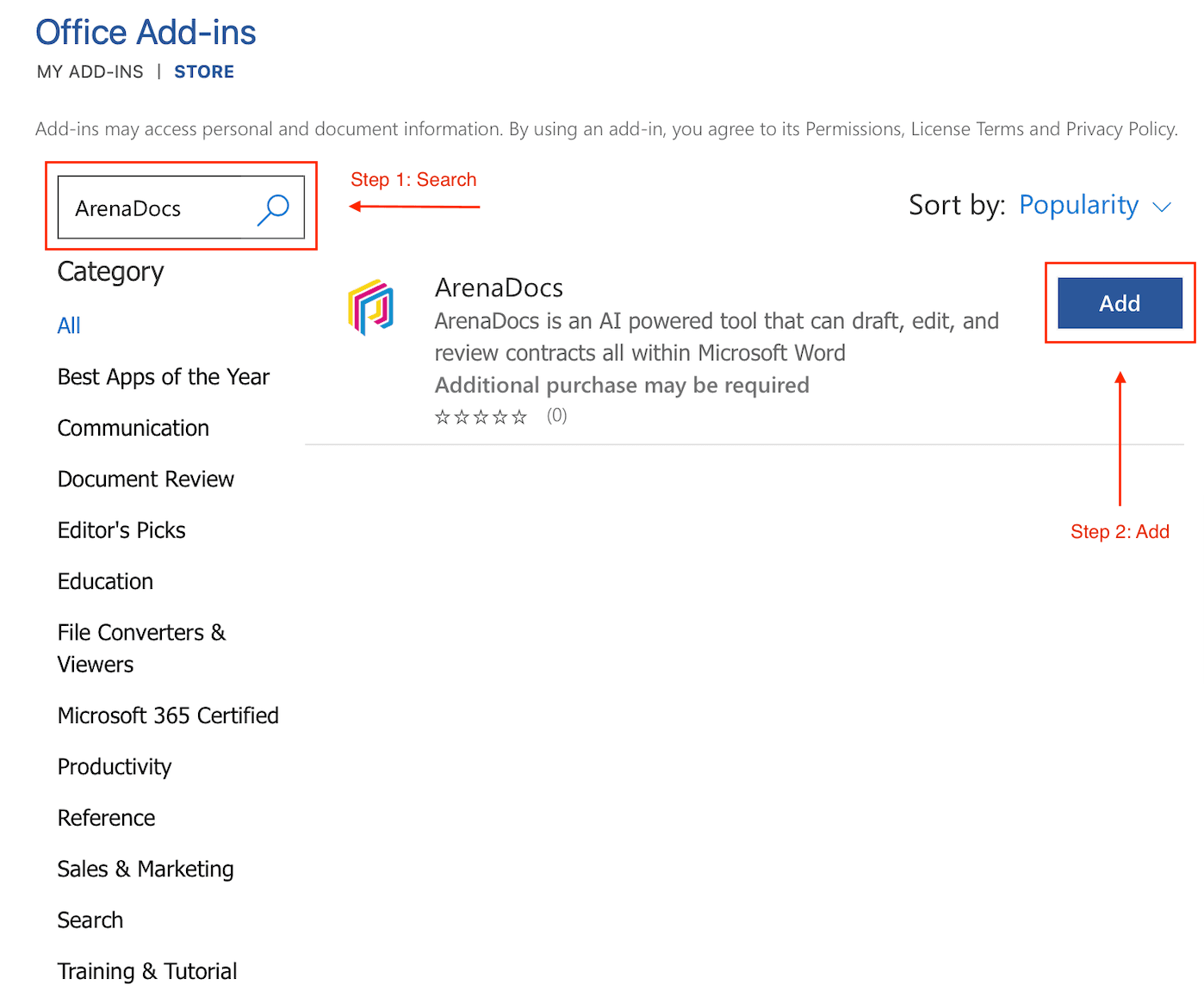
- 1In the search box at the top left, type "ArenaDocs" and press Enter
- 2You'll see the ArenaDocs add-in appear with our colorful logo
- 3Click the blue "Add" button on the right side
- 4ArenaDocs will install and open automatically in a panel on the right side of Word
✅ Great! ArenaDocs is now installed. Continue to Step 5 to learn how to open it.
Click "ArenaDocs" to Open the Panel
Now that ArenaDocs is installed, you can open it anytime you need it:
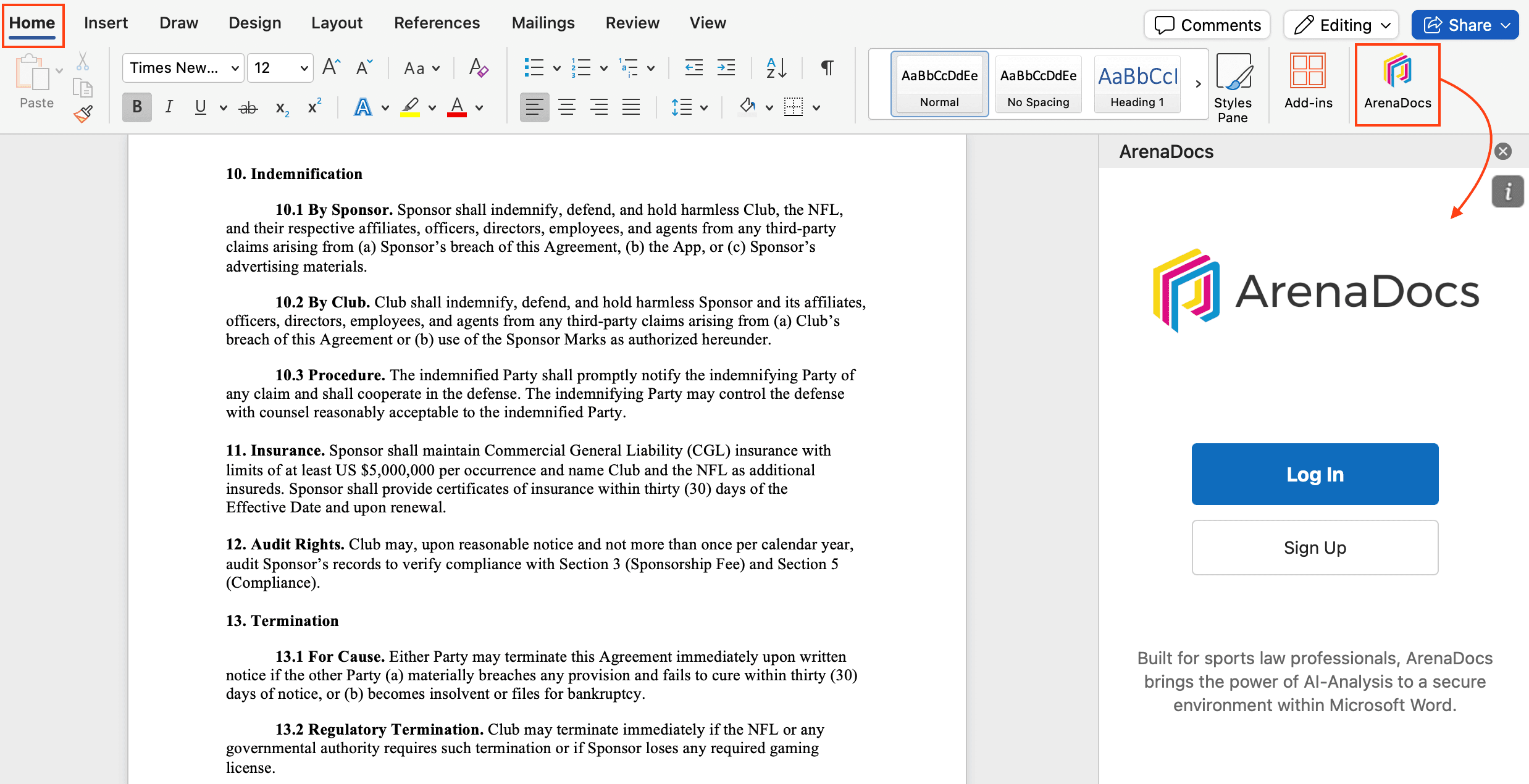
- Look at the far right of your Home tab - you'll see the colorful ArenaDocs button
- Click on "ArenaDocs" button
- The ArenaDocs panel will open on the right side of your Word window
- Log in or sign up to start using ArenaDocs for your contracts!
🎉 That's it! You're all set up and ready to transform your contract workflow. The ArenaDocs panel will always be accessible from the Home tab whenever you need it.
Need Help?
If you have any questions or run into issues during installation, our team is here to help.
What's Next?
Here are some things you can do with ArenaDocs:
Create Your First Contract
Use our sports-specific templates to generate complete contract clauses in seconds.
Modify Existing Agreements
Refine sponsorship clauses with AI assistance built for sports attorneys.
Scan Documents for Issues
Automatically identify potential problems and missing provisions in minutes.
Get Instant Answers
Ask questions about any contract term and get immediate answers with citations.